Trados Studio Manager View - Feedback Opportunity

Your opinion matters!

Join our development team on a one to one interview and tell us what the experience of working with projects and files in Trados Studio is really like.

Why?

In recent years Trados Studio has undergone many changes as our product teams endeavour to ensure that it's a tool that can meet the needs of all of our users.  This work never stops and more recently you may have noticed that we have introduced a new feature, still in Beta, that offers a combined view for projects and files:
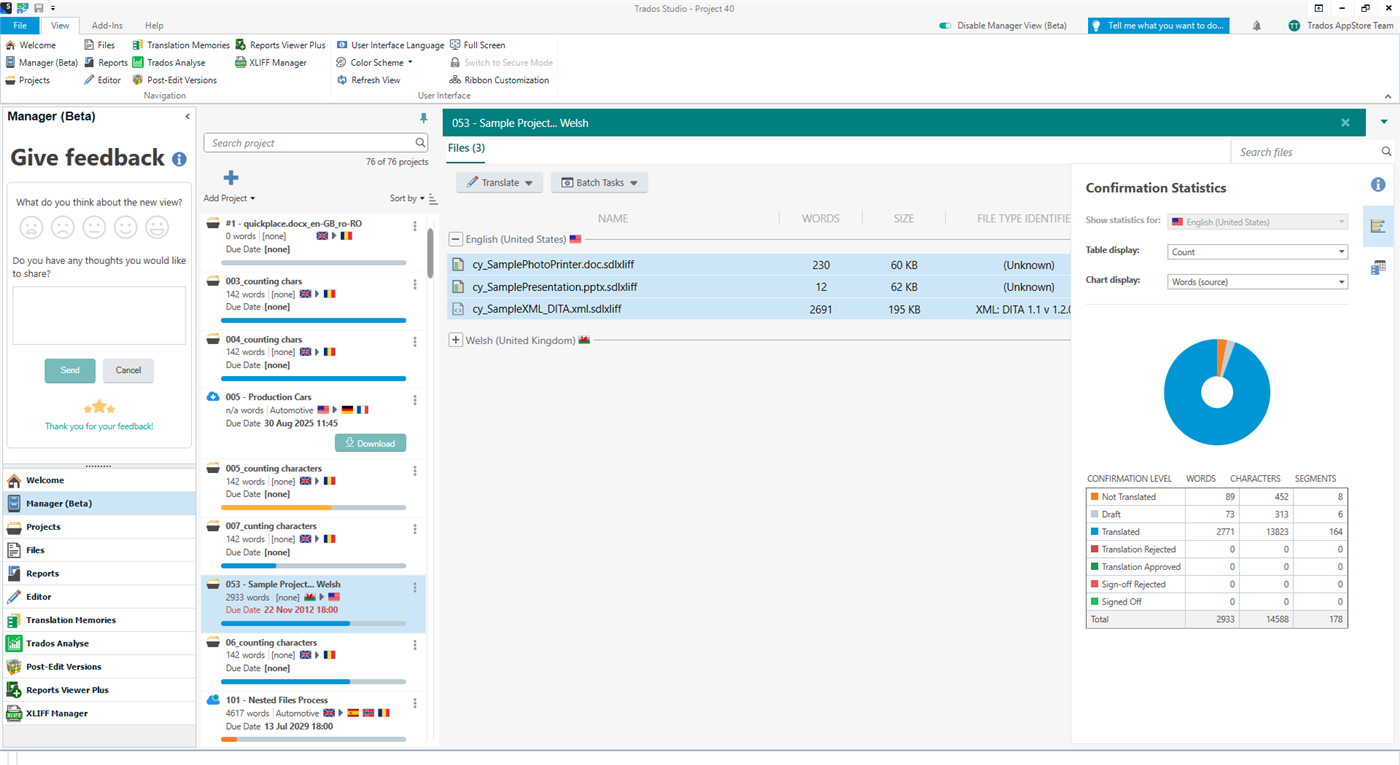
Trados Studio interface showing the Manager View (Beta) with a 'Give feedback' window open on the left and a project with files listed in the main area. Confirmation statistics pie chart on the right.

If you haven't seen it yet, and if you use Trados Studio 2022, then you can enable it by using this slider you'll see at the top of Trados Studio:

Close-up of Trados Studio top menu with an arrow pointing to the 'Enable Manager View (Beta)' slider.

Once enabled you'll see a view similar to the one above and you'll have an opportunity to provide feedback using the "Give Feedback" window in the navigation pane on the left.

We have been receiving some feedback, but we'd really like to try and get some more detailed feedback on how this could be improved based on our users experience in working with it, and also in working with the standard Projects and Files views that have been available in Trados Studio since the original 2009 version.

OPPORTUNITY FOR ONE TO ONE INTERVIEWS CLOSED FOR THIS YEAR.  WE MAY RUN THIS AGAIN AFTER WE HAVE IMPLEMENTED THE VALUABLE FEEDBACK PROVIDED BY THOSE OF YOU WHO WERE KIND ENOUGH TO VOLUNTEER YOUR TIME AND SHARE YOUR EXPERIENCE.

FEEL FREE TO CONTINUE TO SHARE ANY FEEDBACK YOU HAVE IN THIS THREAD.

THANK YOU.


Generated Image Alt-Text
[edited by: Trados AI at 8:59 AM (GMT 0) on 29 Feb 2024]
emoji

Paul Filkin | RWS

Design your own training!
You've done the courses and still need to go a little further, or still not clear? 
Tell us what you need in our Community Solutions Hub

  • Hi  

    Thanks a lot for yor quick reply.

    Sounds like a plan. I will pick a separate date then.

    Have a great day

    Seraina

    emoji
  • Thanks for these swift and informative replies! The information icon I mean is the "i" immediately to the right of the words "Give feedback". Normally, such an icon will provide extra information when clicked. This one does nothing at all, which means it could as well be removed.

    emoji
  •  

    Exactly... thank you :-)

    Paul Filkin | RWS

    Design your own training!
    You've done the courses and still need to go a little further, or still not clear? 
    Tell us what you need in our Community Solutions Hub

    emoji
  • Did you read my reply about this with the screenshot?
    The icon shows a tooltip when you hover over it.

    emoji
  • I also noticed that when you adjust the column size, it does this only for the first target language, but the columns of the next target language below stay the sam

    Thanks  ... noted.

     fyi.

    Paul Filkin | RWS

    Design your own training!
    You've done the courses and still need to go a little further, or still not clear? 
    Tell us what you need in our Community Solutions Hub

    emoji
  • Yes, I see that now. Seems I wasn't patient enough but immediately clicked on the icon and because of that never saw the tooltip.

    emoji
  • Yes, I see that now. Seems I wasn't patient enough but immediately clicked on the icon and because of that never saw the tooltip.

    emoji
  • An additional question concerning the source files list: You say "You can open the files from here" -- but I cannot open the source files, which would actually be very helpful if I could. And another thing which I never thought about before: For some projects, I can also see the .sdlxliff files for both source and target languages. (Why I can do that for some project and not for others I don't understand.) They are of exactly the same size, so I assume they are identical. However, when I look at the same project in the file manager, I can also see some other .sdlxliff files, where the sizes are different for source and target languages. All this leads to several questions:

    1. Why do I see .sdlxliff files in this view for some projects but not for others?

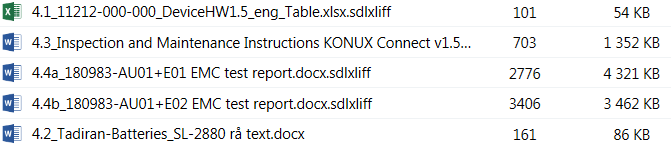
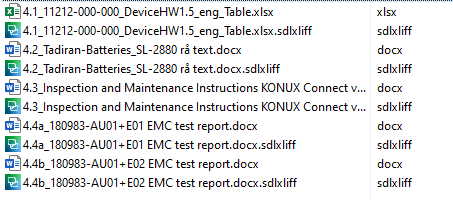
    2. Why do I only see some of those files and not all? Example (the first image is from the Manager view -- the Files view gives the same result --, the second from the file manager):

    Screenshot of Trados Studio showing a list of files with different formats and sizes, including .doc and .sdlxliff files.

    Screenshot of file manager displaying a list of .sdlxliff and .doc files with varying sizes, indicating different content in source and target files.

    As you can see, one of the source files is presented in Studio in *only* the .doc format, whereas evidently it exists also in .sdlxliff format. Strange.

    3. (And this is something I should know but can't understand why I never tried to figure) What is the difference between the source and target .sdlxliff files in those cases when they are obviously different? It seems the answer is that the target .sdlxliff contains whatever translations I have made, whereas the source one contains only the source segments. It makes sense, but then what purpose does the source .sdlxliff serve?

    4. About the columns: Any changes I make to them -- width or order -- is not propagated to the source files part, which is a pity.

    I can't believe I've spent so much time on these really rather unimportant questions...

    emoji


    Generated Image Alt-Text
    [edited by: Trados AI at 9:00 AM (GMT 0) on 29 Feb 2024]
  •  

    First of all I'd like to reinforce that the reason this is a Beta, and optional feature, in Studio is because it's a work in progress.  We are actively looking for feedback as you can see so please don't consider anything you find that doesn't work as you'd prefer to be a fait accomplit.  It will change with every release of Studio, improving each time, until and only if, it reaches a point where it is clearly valuable and could be a replacement for the two views you currently have for projects and files.

    1. Why do I see .sdlxliff files in this view for some projects but not for others?

    It's a work in progress.  Not all project types are fully functional yet.  Maybe compare the type of project and see if this sheds some light on it for you.  Single file projects for example... not supported yet.

    2. Why do I only see some of those files and not all?

    I'm not sure without seeing your actual project.  But again... most likely due to this being a work in progress.

    but then what purpose does the source .sdlxliff serve?

    The simple answer is at least twofold:

    1. it gets used to add more languages to your project if you find you need to add languages after creating the original project.  The batch tasks have a convert to sdlxlff and then a copy target languages.  Since we have the sdlxliff already the act of adding more languages is faster.
    2. not a supported workflow... but some project managers will send out the sdlxliff from the source folder to translators for each language and rely on them to add the target.  This way they only need to send one sdlxliff file for all languages needed.  If you don't do that you either have to select the specific target language sdlxlff for each one, or create packages for each one.  It is a risky strategy though as anyone using an older version of Studio as you could cause you problems.
    4. About the columns: Any changes I make to them -- width or order -- is not propagated to the source files part

    Yes... also noted by Walter.  Work in progress!

    Paul Filkin | RWS

    Design your own training!
    You've done the courses and still need to go a little further, or still not clear? 
    Tell us what you need in our Community Solutions Hub

    emoji
  •  

    I can't believe I've spent so much time on these really rather unimportant questions...

    Not unimportant at all... all feedback is welcomed.

    Paul Filkin | RWS

    Design your own training!
    You've done the courses and still need to go a little further, or still not clear? 
    Tell us what you need in our Community Solutions Hub

    emoji