Problem when opening package in Studio 2019 - path too long

Hello,

I wonder if somebody can help me with an issue I'm having with SDL Studio 2019 and 2015. Last Friday, my computer has crashed (its OS was Windows 7 Pro). The notebook suddenly turned off while I was working and didn't turn on again. I managed to recover my HD and installed everything I had on my backup notebook, which has Windows 10 Home SL installed.

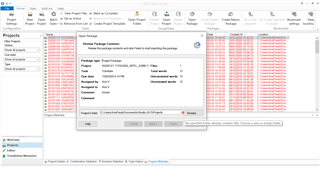
I had been using SDL Studio 2015 on my previous machine and it was working fine, but now I cannot save the projects anymore in the new machine. When I open the package, and choose a folder to save it in, I get the message: "The path for project files is too long. Enter a shorter location" (please see screenshot). I have always received files to translate with long names, and I have been using long paths when saving the projects successfully for a long time.
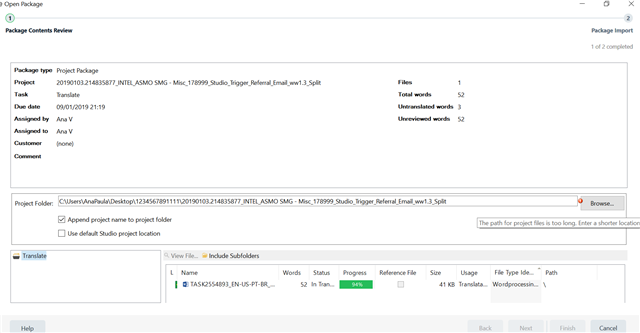
Error message in Trados Studio 2019 stating 'The path for project files is too long. Enter a shorter location' while trying to save a project.

I have searched for this issue everywhere, I have tried to do all the things the websites suggest, but nothing works. They are just workarounds, but I'd like a real solution for this. My husband has installed Studio again on a machine with Win 10 Pro where he works and it didn't work either. He has also installed Studio again in another machine with Win7 Pro and it worked.

As I saw there is no support anymore for Studio 2015, I was thinking of buying Studio 2019 to have this issue solved. So, before buying, I have downloaded Studio 2019 to use the trial version and check if it would work, but it didn't. I get the same message above.

Have you experienced this issue before? What could I do to have Studio working perfectly again?

Thank you!
Ana


Generated Image Alt-Text
[edited by: Trados AI at 3:45 AM (GMT 0) on 29 Feb 2024]

emoji
  • Well it's a big project name, even if we can't see the full name, and there is a 260 character-length path limit in Windows.

    Instead of using the folder 1234567891111 in your desktop, first try creating a shorter folder, like 1 or A.

    This way, your root folder:

    C:\Users\AnaPaula\Desktop\1234567891111\

    will be a little shorter:

    C:\Users\AnaPaula\Desktop\1\

    ¿Does it work?

  • Thank you for your answer, Jesús, I really appreciate it!

    Yes, this worked, but as I still wasn't convinced that this was the real problem (as Studio was working fine on my old machine), I continued to investigate this today, and I finally found out what's going on.

    Actually, some may think it's a silly problem, but as I have read that some people seem to have experienced this same issue, I think it's good to share my findings and the screenshots so that the solution is clear.

    Sometimes the problem is not that the file name or the path is too long, but we may be checking the option "Append project name to project folder" without being aware, making the path really long, as my screenshot on my previous message.

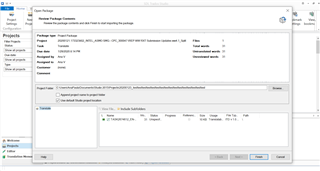
    But — I think most or as important than that — when the dialog box "Open Package" is open, we cannot see the whole dialog box. Some important options are "hidden": 

    Trados Studio screenshot showing the 'Open Package' dialog box with the 'Append project name to project folder' option checked, resulting in a long file path error.

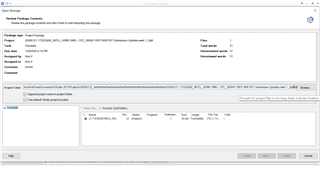
    Only after I detected this layout issue and enlarged the dialog to see all the options, I was able to check the proper options to continue saving the file with its original (big) name where I have always done it, not on the desktop, even if the folder name is also big:

    Trados Studio screenshot of the 'Open Package' dialog box partially visible, hiding important options due to layout issue.

    Only if we check the first option "Append...", the error message appears, stating the file name or path is too long:

    Trados Studio screenshot of the 'Open Package' dialog box fully visible after resizing, showing all options including unchecked 'Append project name to project folder'.

    I hope this really helps other people, because I have spent the last four days thinking the problem was with my machine and my Windows 10, but it actually is a Studio layout issue in my opinion.

    Thank you, Jesús!
    Ana

    emoji


    Generated Image Alt-Text
    [edited by: Trados AI at 3:45 AM (GMT 0) on 29 Feb 2024]
  • Hi Ana

    As Jesús mentioned, Windows defaults to a 260-character limit for file names.

    But you can edit the Windows registry to extend the length considerably (to more than 32,000 characters).

    See, for example, https://www.itprotoday.com/windows-10/enable-long-file-name-support-windows-10

  • But — I think most or as important than that — when the dialog box "Open Package" is open, we cannot see the whole dialog box. Some important options are "hidden":

    Check carefully the error message on the screenshot you refer to - it's different error!
    That error is not about long path (and it really ISN'T long, though you call it long!), that error is about the fact that you are going to extract the package to a location which isn't empty.

    And that layout problem is not really the cause of your issue, since you can easily manually correct the path or use the Browse button to select different path, regardless of that check box status.

  • Hi Bruce,

    I've done that before posting the question here, but it hadn't worked for me. This is indeed an issue with Windows, but I realized that there was something else happening in my case, which I discovered this morning and described in my answer to Jesús.

    Thank you anyway for your answer! Slight smile

  • Hi Evzen,

    Before posting this answer and these screenshots here, I saw it was a different error. My point is another one, maybe I wasn't clear.

    I still believe it's a layout bug because as the "Append project name..." check box was selected, but I could not see it (due to the dialog box small size when it's open), it led me to believe the problem was with the file name or path. The error message indicated me the path was long, but actually it wasn't. The hidden option that was selected was just "duplicating" the size, because it inserted the long file name in the project folder.

    What I was trying to say is that I have always saved my projects in that same path, but now Studio (actually the hidden check box) "wasn't allowing" me to do that.

    Thank you for your answer!

  • I've done that before posting the question here, but it hadn't worked for me.

    Surely it didn't, because the registry change is not enough... the actual application has to be ready for NTFS-long-paths in the first place.
    And Studio seems to be one of those applications implementing the warning/limit on the GUI level, so it does not seem to even try to use the long paths.

    The error message indicated me the path was long, but actually it wasn't. The hidden option that was selected was just "duplicating" the size, because it inserted the long file name in the project folder.

    So the path - i.e. the COMPLETE PATH, as shown in the input field! - actually WAS long, not that it wasn't.
    The message is related to the path shown in the input field, NOT to something imaginary what you think it's related to. It's that simple.
    The checkbox simply automatically adds the project name to the path right when the dialog is shown. That's all. It does NOT prevent you from manually deleting any part from the path to make it shorter. It's that simple.

    It all seems to be again about misunderstanding of how the computers work, what is what, etc.
    Believe me. I work with computers since mid 80s, I know what I'm talking about.

  • Problem is that these lame articles mention only part of the facts... the lame parts (because the authors do not understand the rest)... so in the end they simply claim something what is NOT TRUE.

    Here is the original technically oriented article in Microsoft documentation, stating the whole story, including the fact that it concerns Win32 API and including the list of particular directory- and file management functions affected by the change (which means that only applications using the Win32 API and those listed functions can(!) benefit from the change... if and only if they do not implement some warnings/limitations in the applications' own level!). Plus, the application must explicitly manifest the long paths support.
    In other words, it means that changing the registry itself DOES NOT magically change the application behavior!

    https://docs.microsoft.com/en-us/windows/win32/fileio/naming-a-file#maximum-path-length-limitation

  • I would suggest to use Long Path Tool program. It resolves
    problem regarding source path too long.

  • I would suggest using Long Path Tool program. It resolves
    the problem regarding the source path too long.