
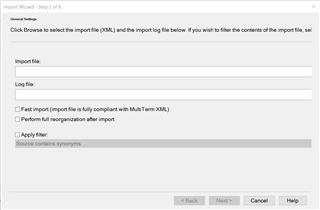
MultiTerm 2019 Import Wizard: "Browse" and "Save As" buttons NOT displaying on the import wizard window

Former Member
Former Member

Trados Studio MultiTerm2019 Import Wizard window with missing 'Browse' and 'Save As' buttons. Displays options for 'Import file' and 'Log file' with checkboxes for 'Fast import' and 'Apply filter'.

I am trying to import an xml file into MultiTerm2019. When I activate the wizard by clicking on "Process", the above window appears, but does not display the "Browse" or "Save As" buttons which (I believe) should be there.

As a result, it is impossible for me to import my xml file into my term base.

I have reinstalled and I have tried every possible display setting Windows 10 allows, all in vain.

I feel like I am missing the obvious here.

Please help.

Chris.


Generated Image Alt-Text
[edited by: Trados AI at 2:11 PM (GMT 0) on 5 Mar 2024]

emoji
  • There is a bit of a funny solution that seems to work if you are using the English interface of SDL Multiterm. The Browse button that is missing is actually off-screen. The shortcut to activate it is Alt+w.

    If you use this key combination, even if the actual button is not visible, the Browse Dialog box will still pop up. Select the import file as you wish and click OK. Once an import file is selected, the Next button will finally be enabled. And Viola! You can go on to complete the import process without actually having to re-adjust your screen resolution.

    emoji